


Real Estate Data Integration: CSV Compatibility Tips
When working with real estate data, CSV files are a go-to format for transferring property details, lead information, and financial data between systems. But even minor formatting errors - like misplaced commas or inconsistent date formats - can disrupt workflows and cause data misalignment. This guide explains how to structure, validate, and test CSV files to ensure smooth imports into CRMs, email tools, and property management software.
Key Takeaways:
- Why CSV Files Matter: Lightweight, universal, and compatible with most software, CSV files are ideal for managing large datasets like probate or preforeclosure leads.
- Formatting Essentials: Use consistent headers (e.g.,
Property_Address), proper delimiters (commas), and UTF-8 encoding to prevent errors. - Validation Steps: Test small batches, check for ragged rows, and ensure all fields match your system's schema.
- Best Practices: Standardize columns for property details, financial data, and lead scoring. Avoid leading zeros being dropped or dates misinterpreted by using text formats and ISO 8601 (YYYY-MM-DD).
Pro Tip: Tools like LeadList.Pro deliver pre-formatted CSV files with clean headers and AI-generated data, saving you hours of manual cleanup.
Properly structured CSVs reduce errors, improve data accuracy, and keep your real estate operations running smoothly.
How to Scrape and Clean Real Estate Data in Excel & Google Chrome (EASY TUTORIAL)
What CSV Files Are and How They Work in Real Estate
::: @figure 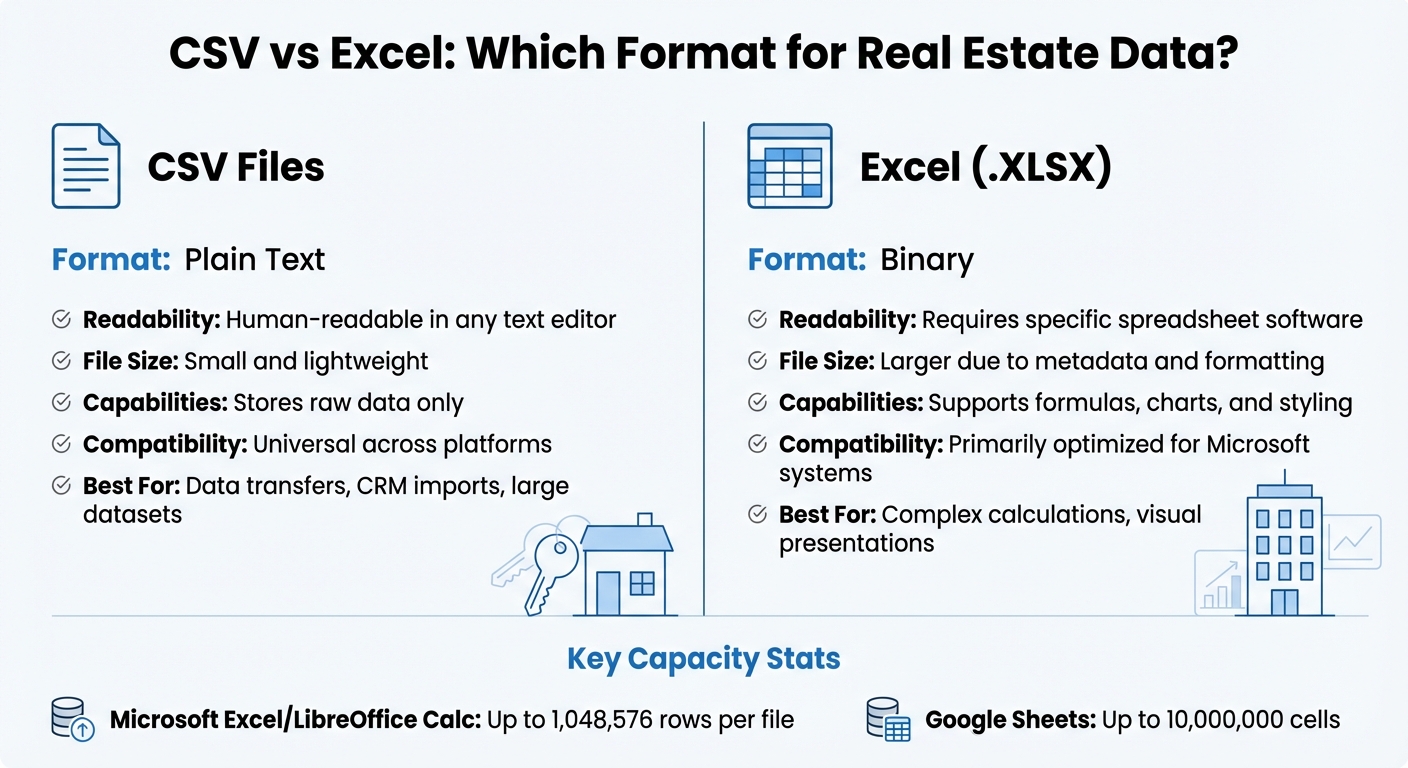 {CSV vs Excel File Format Comparison for Real Estate Data}
:::
{CSV vs Excel File Format Comparison for Real Estate Data}
:::
A CSV (comma-separated values) file is a simple text format used to store tabular data. Each line in the file represents a record, with commas separating the individual fields [7][9]. Think of it as a stripped-down spreadsheet. This simplicity makes CSV files incredibly useful in real estate workflows, as they can be opened in various tools like Notepad, Excel, Google Sheets, or any software capable of handling data [7][9].
"CSV files are a straightforward, lightweight method for storing relational and tabular data." - Integrate.io [9]
Their universal compatibility allows property listings, lead information, and transaction records to move effortlessly between systems like your CRM, email marketing platform, and property management software - no need for costly custom integrations.
Why Real Estate Professionals Use CSV Files
Real estate professionals rely on CSV files as a universal tool for transferring data between systems [7][10]. Whether you're exporting contact lists from a database or importing lead data into platforms like HubSpot, the CSV format ensures smooth transfers across different software.
Another key advantage is their lightweight design. Unlike Excel’s .XLSX files, which include metadata, styling, and formulas, CSV files contain only raw data [9][5]. This makes them faster to share and easier to process - especially important when working with time-sensitive leads like those in probate or preforeclosure. Additionally, opening a CSV file in a text editor is safer than opening proprietary formats, as plain text files can’t execute malicious code [4].
"The plain-text character of CSV files largely avoids incompatibilities such as byte-order and word size. The files are largely human-readable, so it is easier to deal with them in the absence of perfect documentation or communication." - Library of Congress [7]
Here’s a quick comparison of CSV files and Excel’s .XLSX format:
| Feature | CSV File | Excel (.XLSX) |
|---|---|---|
| Format | Plain Text [7] | Binary [10] |
| Readability | Human-readable in any text editor [9] | Requires specific spreadsheet software [10] |
| Size | Small and lightweight [9] | Larger due to metadata and formatting [5] |
| Capabilities | Stores raw data only [4] | Supports formulas, charts, and styling [10][4] |
| Compatibility | Universal across platforms [7] | Primarily optimized for Microsoft systems |
CSV files also handle large datasets well. For example, Microsoft Excel and LibreOffice Calc can manage up to 1,048,576 rows per file, while Google Sheets supports up to 10,000,000 cells [7][5]. This makes them ideal for managing extensive lead lists without running into technical limits.
Types of Real Estate Data Stored in CSV Files
CSV files can organize all kinds of data essential to real estate professionals. Property details like addresses, square footage, year built, and lot size often form the backbone of these files [6][11]. Financial data - such as list prices, sale prices, tax assessments, and appraisal values - helps evaluate investment opportunities [6][4].
When it comes to lead management, CSV files excel at handling contact information. They can store structured data like names, phone numbers, email addresses, and agent records, which can be directly imported into your CRM [9][6]. Additionally, transaction and activity data - such as sale dates, lead statuses, showing schedules, and tour information - can be tracked efficiently [6][11].
For those working with distressed properties, CSV files can include specialized fields like probate status, preforeclosure deals, and distress scores. This structured approach keeps everything organized, from property details to contact information.
How LeadList.Pro Delivers Data in CSV Format

LeadList.Pro provides probate and preforeclosure leads from Massachusetts courts in CSV files that are ready to use. Each weekly delivery includes detailed property information, contact details, attorney records, and AI-generated distress scores - all formatted to map directly to standard CRM fields.
The files come with standardized headers like "Property_Address", "Decedent_Name", "Attorney_Phone", and "Distress_Score", eliminating the need for manual mapping. With UTF-8 encoding and consistent formatting, the data can be seamlessly imported into tools like Salesforce, Follow Up Boss, or email marketing platforms without extra cleanup [5][4].
This streamlined format allows you to spend less time reformatting data and more time connecting with motivated sellers. Whether you’re using a Mac, PC, or a cloud-based system, the CSV files integrate effortlessly into your workflow, setting the stage for the technical best practices discussed next.
How to Standardize and Prepare CSV Files for Import
To avoid errors and ensure smooth data handling, it's crucial to structure your CSV files properly. Start with a header row that clearly labels each column, such as "Property_Address", "Owner_Name", or "Distress_Score" [12]. This not only makes the file easier to understand but also helps your system interpret the data.
Your CSV should be flat, meaning no nested or hierarchical data. Each row should represent a complete, individual record [1]. For example, instead of keeping full addresses in one field, break them into separate columns: "Street_Address", "City", "State", and "Zip_Code" [13]. Similarly, split names into "First_Name", "Middle_Name", and "Last_Name" for better clarity.
"CSV files are not suitable for grouped data, or nested or hierarchical data structures, as each row within a CSV file represents a single line item." - MindBridge Support [1]
Consistency is key. Use the same delimiter - whether it's a comma, tab, or pipe - for both headers and data rows. For fields containing delimiters, enclose the content in double quotes, like "123 Main Street, Unit 2" [1][12]. Numeric fields should follow a uniform format, and dates should stick to a single structure, such as MM/DD/YYYY or YYYY-MM-DD [1].
Creating a Standard Column Structure
Organizing your columns thoughtfully can improve data clarity and usability. Group related fields together for easier navigation. For instance:
- Property Details: Include fields like "Property_Type", "Bedrooms", "Bathrooms", and "Year_Built."
- Financial Data: Use columns such as "Equity_Percentage", "Loan_Balance", and "Tax_Delinquent_Status."
- Lead Status: Add fields like "Lead_Tier", "Follow_Up_Cadence", and "Last_Contact_Date" [14].
Here’s a quick overview:
| Column Category | Example Field Names | Purpose |
|---|---|---|
| Property Details | Property_Type, Bedrooms, Bathrooms, Year_Built | Basic property identification |
| Financial Data | Equity_Percentage, Loan_Balance, Tax_Delinquent_Status | Assessing financial conditions |
| Lead Status | Lead_Tier, Follow_Up_Cadence, Last_Contact_Date | Managing sales funnel |
| Scoring/Analytics | Distress_Score, Conversion_Probability, Engagement_Points | Prioritizing leads |
| Ownership Info | Owner_Name, Ownership_Years, Absentee_Indicator | Identifying decision-makers |
Use underscores instead of spaces or special characters in column names to avoid parsing errors. For example, write "time_period_mins" instead of "time period (mins)" [4]. Additionally, convert any scientific notation into full numeric values before importing. For instance, replace "1.5E+05" with "150000" to maintain accuracy in financial data [1].
Matching Data Fields to Your System
Most real estate software organizes data into modules like Owner, Property, Unit, and Tenant [17]. Your CSV structure should align with these modules. Use unique identifiers - like "owner_id" linked to "property_id" and "unit_id" - to establish relationships between records [17]. Without these identifiers, your system won’t be able to connect related data.
Before importing, map external data to your system's schema. For example, if the incoming data uses "Single Family" for property type but your system recognizes "SFR", create a mapping rule. Similarly, standardize ownership statuses (e.g., convert "Non-Owner Occupied" to "NOO") [15][16]. Tools like LeadList.Pro already follow these mapping conventions, enabling seamless integration with standard CRMs.
Data types also matter. Your system expects specific formats: strings for names and addresses, decimals for financial information, and Boolean values (TRUE/FALSE) for features like parking availability [17]. Mixing formats - like entering text in a numeric field - will cause import issues.
Organizing Status and Scoring Data
Keep status and scoring fields uniform and easy to process. Use consistent, simplified values without spaces, such as "hot_lead" instead of "Hot Lead" or "actively_considering" instead of "Actively Considering" [4]. This consistency allows automated workflows in your CRM to function properly.
For numeric fields like distress scores or conversion probabilities, maintain precision by using consistent decimal formatting, such as 85.50 instead of mixing formats like 85,5 or 85.5 [1][2]. Each cell should contain only one value - avoid listing multiple scores or statuses in a single field. If you need to track multiple tags, separate them with a unique delimiter like double pipes: "motivated||high_equity" [18].
"The better you organize the information you gain on the prospect, the more effective you will be at prospecting and following up on real estate leads." - Wesley D. Snow, Co-Founder & President, Ascendix [14]
LeadList.Pro simplifies this process by providing pre-structured scoring columns like "Distress_Score" with consistent numeric formatting, reducing the need for manual adjustments. Consistent formatting, including removing unnecessary spaces, ensures smooth system integration. Even minor issues like leading or trailing spaces can disrupt data recognition [2][5].
Implementing these structuring techniques prepares your data for efficient validation and testing during the import process.
sbb-itb-fc184bb
Technical Tips for Formatting CSV Data
Keeping your CSV files properly formatted ensures they work seamlessly across various platforms like CRMs, property management software, or analytics tools. This clean data is essential when you analyze preforeclosure leads for profitability or evaluate market trends. Following the RFC 4180 standard helps maintain data integrity and avoids errors during imports.
Setting Delimiters, Encoding, and Line Endings
Stick with commas as your delimiter. While some systems allow semicolons, pipes, or tabs, the comma is the universal standard in the U.S. If a field includes commas, like an address ("123 Main Street, Unit 2"), wrap it in double quotes [8].
Choose UTF-8 encoding to prevent character corruption [19]. Double-check Excel's UTF-8 CSV output to avoid issues with BOM (Byte Order Mark).
Use CRLF for line endings to ensure smooth compatibility across platforms [8]. If a field contains a line break, enclose it in double quotes to keep it intact. For double quotes within a quoted field, escape them by doubling up - for example: "Property known as ""The Heights""" [8].
Finally, use the official MIME type "text/csv" to help systems recognize and process the file correctly [8].
Formatting Text, Numbers, and Currency Fields
Trim unnecessary spaces to avoid mismatches [5]. Text fields with commas, line breaks, or quotes should always be enclosed in double quotes to maintain structure [8].
Use periods for decimal points and skip thousands separators. For example, record 150000.50 instead of 150,000.50. Also, convert scientific notation (e.g., 1.02E+11) into full numeric values to prevent precision loss [1].
Record currency values as plain decimals without symbols like dollar signs. For instance, use 450000.00 instead of $450,000. You can indicate the currency type in the column header, such as "Sale_Price_USD", while keeping the data numeric [20].
Preserve leading zeros by marking fields like zip codes or property IDs as text during import. This ensures "02108" doesn’t turn into 2108 [5].
| Field Type | Correct Format | Avoid |
|---|---|---|
| Text with commas | "123 Main St, Apt 4" | 123 Main St, Apt 4 |
| Numbers | 1250.50 | 1,250.50 or 1250,50 |
| Currency | 450000.00 | $450,000.00 |
| Zip Codes | "02108" (as text) | 2108 (as number) |
| Dates | 2025-12-29 | 12/29/25 or 29-12-2025 |
Using U.S. Date and Address Formats
Once individual fields are formatted, follow U.S. standards for dates and addresses. Use the ISO 8601 format (YYYY-MM-DD) for dates to avoid confusion. For example, write 2025-12-29 instead of 12/29/2025 [21].
When dealing with addresses, enclose them in double quotes if they include commas. For instance: "1600 Pennsylvania Ave, Washington, DC, 20500" ensures the address stays in a single column [8]. For phone numbers, stick to the E.164 format (e.g., +15551234567) to maintain consistency across platforms [20].
How to Validate and Test Your CSV Files
After mastering proper CSV formatting, the next step is validating and testing your files. This process is essential before importing data into systems like CRMs or property management platforms. Why? Because even minor errors can disrupt workflows or corrupt data. With the real estate industry generating around 2.5 billion data points from transactions, market activities, and construction projects [3], small mistakes can snowball into significant issues.
Checking File Structure and Data Quality
Start by making sure your CSV file has a consistent structure. Check that all rows have the same number of columns to avoid issues like ragged rows [1][23]. Open the file in a text editor to confirm uniformity, and ensure that column headers are unique and not left blank - duplicate headers can confuse most import tools [23].
Next, verify that critical fields, such as PropertyID or UnitID, are complete and meet your business rules. For example, lease end dates should follow start dates, and occupancy percentages should stay within the 0–100% range [22]. As Marko Jovanovic of CREx Software explains:
"Data validation is more than a technical step, it's a safeguard for business confidence. Incomplete or inconsistent data can lead to bad decisions, missed opportunities, and costly compliance issues" [22].
It’s also a good habit to record a daily snapshot of your CSV schema, including column names, types, and order. This helps you quickly identify any structural changes. Compare current record counts or field totals - like total rent or square footage - against historical benchmarks to spot unexpected spikes or drops [22].
Once you’ve confirmed the structure, move on to small batch testing to catch hidden formatting issues.
Testing with Small Data Batches
Small batch testing is an effective way to ensure your data works as intended. Start with 10–50 records before attempting a full import. This will help you identify problems like inconsistent values, where a column is mostly numeric but occasionally contains text, which can cause import errors [23].
Use these test batches to confirm that unique identifiers - such as Record IDs or email addresses - function as expected. This includes ensuring they correctly update existing records or prevent duplicates [20]. Additionally, check that UTF-8 encoding is maintained, especially if your data includes special characters or non-English text [23][24]. Verify that U.S. date formats (MM/DD/YYYY) and currency values (USD with decimals) are correctly interpreted by your system [24][20].
| Common CSV Error | Impact on Import | Resolution Strategy |
|---|---|---|
| Ragged Rows | Data fields shift or fail to load | Ensure every row has the same number of delimiters as the header [1][23] |
| Delimiter Confusion | Data splits into wrong columns | Enclose values containing delimiters in double quotes [1][12] |
| Inconsistent Values | Field type mismatch | Ensure all values in a column use the same data type [23] |
| Invalid Encoding | Corruption of special characters | Save the file using UTF-8 encoding [23][24] |
Setting Up Repeatable Import Processes
Once you’ve validated your data, it’s time to create a repeatable import process. For regular imports, like weekly updates from tools such as LeadList.Pro, save your import configurations. This includes field mappings and any concatenation rules (e.g., combining "First Name" and "Last Name") [18]. Standardizing these settings ensures consistency and reduces the need for manual adjustments.
Automate repetitive tasks using tools like Python's Pandas library or macros, and schedule them with Cron jobs [2][5][18]. Define clear rules for handling empty cells - whether to ignore them and retain existing data or overwrite with null values - to avoid unintentionally erasing important information [18].
Keep version control for your CSV structures and scripts to track changes and prevent conflicts [2]. Regularly audit import logs to identify errors, such as large numbers being converted to scientific notation (e.g., 1E+10), which could lead to precision loss [1][2]. Finally, document procedures for handling late files, schema updates, and vendor escalations to ensure your process remains smooth and reliable [22].
Conclusion
CSV file compatibility plays a key role in ensuring smooth and reliable workflows for real estate data. By standardizing column structures, sticking to consistent delimiters, and validating files before importing, you can sidestep errors that could disrupt transactions or compromise data accuracy.
With the real estate industry generating an estimated 2.5 billion data points daily - spanning transactions, market trends, and construction projects [3] - it's easy to see how even small formatting issues, like mismatched columns or incorrect date formats, can snowball into bigger problems. Following standards like RFC 4180 and using UTF-8 encoding ensures your files work seamlessly with CRMs, spreadsheets, and analytics tools [4][5].
For example, LeadList.Pro offers weekly probate and preforeclosure leads in CSV files designed to meet industry standards. These files come with standardized headers for property details, contact information, and even AI-generated distress scores, letting you focus on connecting with leads instead of wasting time fixing formatting errors.
FAQs
::: faq
What are the best practices for ensuring my CSV files work with real estate CRMs?
To make sure your CSV files work smoothly with real estate CRMs, keep these tips in mind:
- Stick to commas as delimiters and enclose any values with commas in double quotes. Avoid other delimiters unless your CRM supports them.
- Use a clear header row with simple, descriptive column names like
PropertyAddress,ListingPrice, orClosingDate. Steer clear of special characters or spaces. - Keep column counts consistent for all rows to avoid import issues.
- Format data to match U.S. standards, such as MM/DD/YYYY for dates, dollar amounts with commas as thousand separators (e.g.,
$250,000.00), and two decimal places for currency values. - Eliminate empty rows or columns and ensure the file size stays within your CRM's limits.
If you’re looking for an easier solution, LeadList.Pro offers pre-formatted CSV files with probate and pre-foreclosure leads, ready to upload directly into your CRM without any extra work. :::
::: faq
What should I watch out for when formatting CSV files for real estate data integration?
To avoid mistakes when working with real estate data in CSV files, it's important to get the formatting right. Here are some common pitfalls to steer clear of:
- Mismatched columns: Every row in your file should have the same number of values as the header row. Missing or extra values can cause data to shift or drop during the import process.
- Quoting issues: If a field includes commas, quotes, or line breaks, enclose it in double quotes. For any quotes within the field, use double quotation marks (e.g.,
""metal"" screw costs"). - Delimiter problems: Stick with one delimiter (like commas) throughout the file. If the delimiter appears within your data, escape or replace it to avoid confusion.
- Inconsistent formatting: Use U.S. standards for dates (MM/DD/YYYY), currency ($1,234.56), and decimals to ensure accurate data parsing.
- Encoding troubles: Save the file as UTF-8 without a BOM (Byte Order Mark) and remove hidden characters like extra spaces or stray line breaks.
By sticking to these guidelines, your CSV files - whether sourced from tools like LeadList.Pro or elsewhere - will integrate smoothly with your CRM, MLS, or analytics platforms, keeping your real estate processes running efficiently. :::
::: faq
Why is UTF-8 encoding crucial for managing real estate data in CSV files?
When it comes to handling data, UTF-8 encoding plays a crucial role. It ensures that all characters - whether they’re special symbols or text in non-English languages - are preserved accurately. Without it, you might encounter problems like missing data, scrambled text, or errors when sharing or uploading CSV files across various platforms.
In industries like real estate, where precise details like property descriptions and contact information are critical, using UTF-8 encoding guarantees that this data remains intact during transfers. It’s the key to maintaining compatibility and ensuring seamless data integration. :::


